Entering Commentary
Now the series has been created, let’s commentate!
A number of buttons are available to commentators to streamline the process:
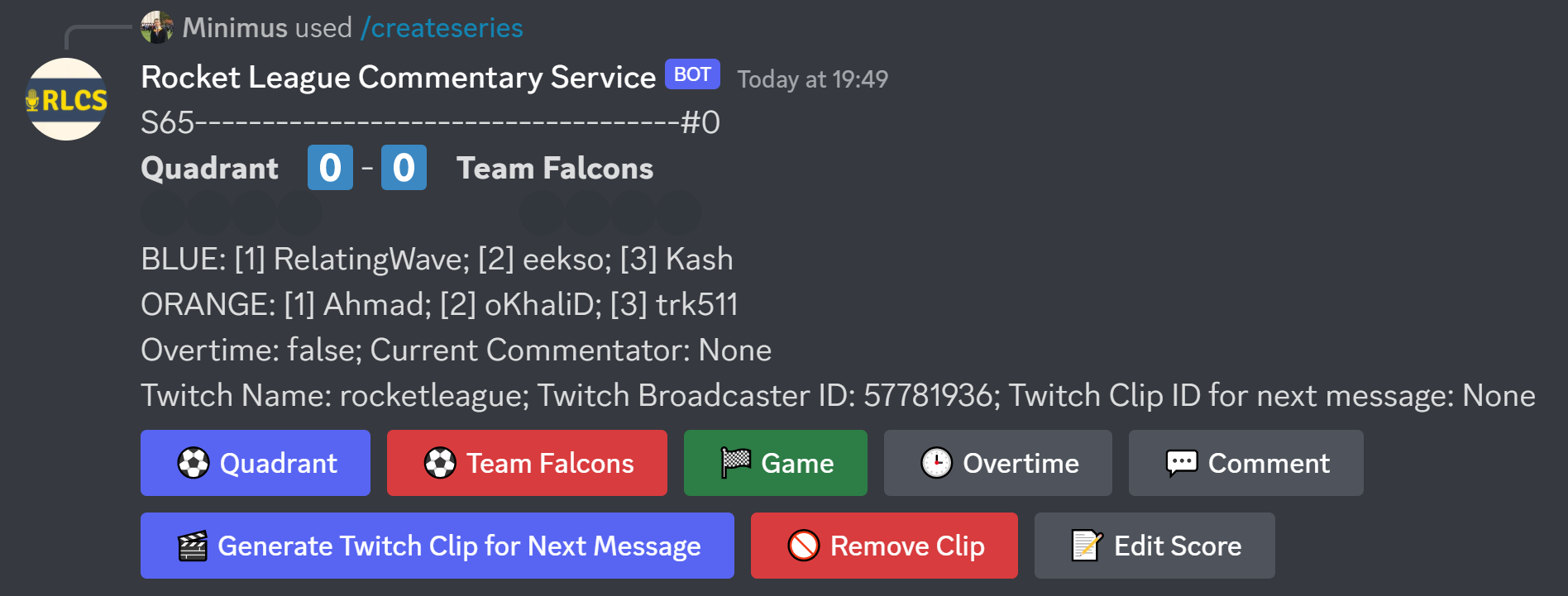
| Button | Action Taken | Message Published to All Users |
|---|---|---|
| Goal (Team) | +1 to the team’s game score | Yes |
| Game | +1 to the winning team’s series score | Yes |
| Overtime | ‘Overtime’ flag set | Yes |
| Comment | Publish comment, without impacting score | Yes |
| Generate Twitch Clip | Creates a Twitch clip, which is appended to the next message | On next message |
| Remove Clip | Removes the Twitch clip that was created | No |
| Edit Score | Edit the score without publishing updates | No |
Table of contents
Goal
Pressing ⚽ Quadrant upticks Quadrant’s game score by 1, and opens the below menu. We can fill it out to record a goal scored by RelatingWave, and assisted by Kash:
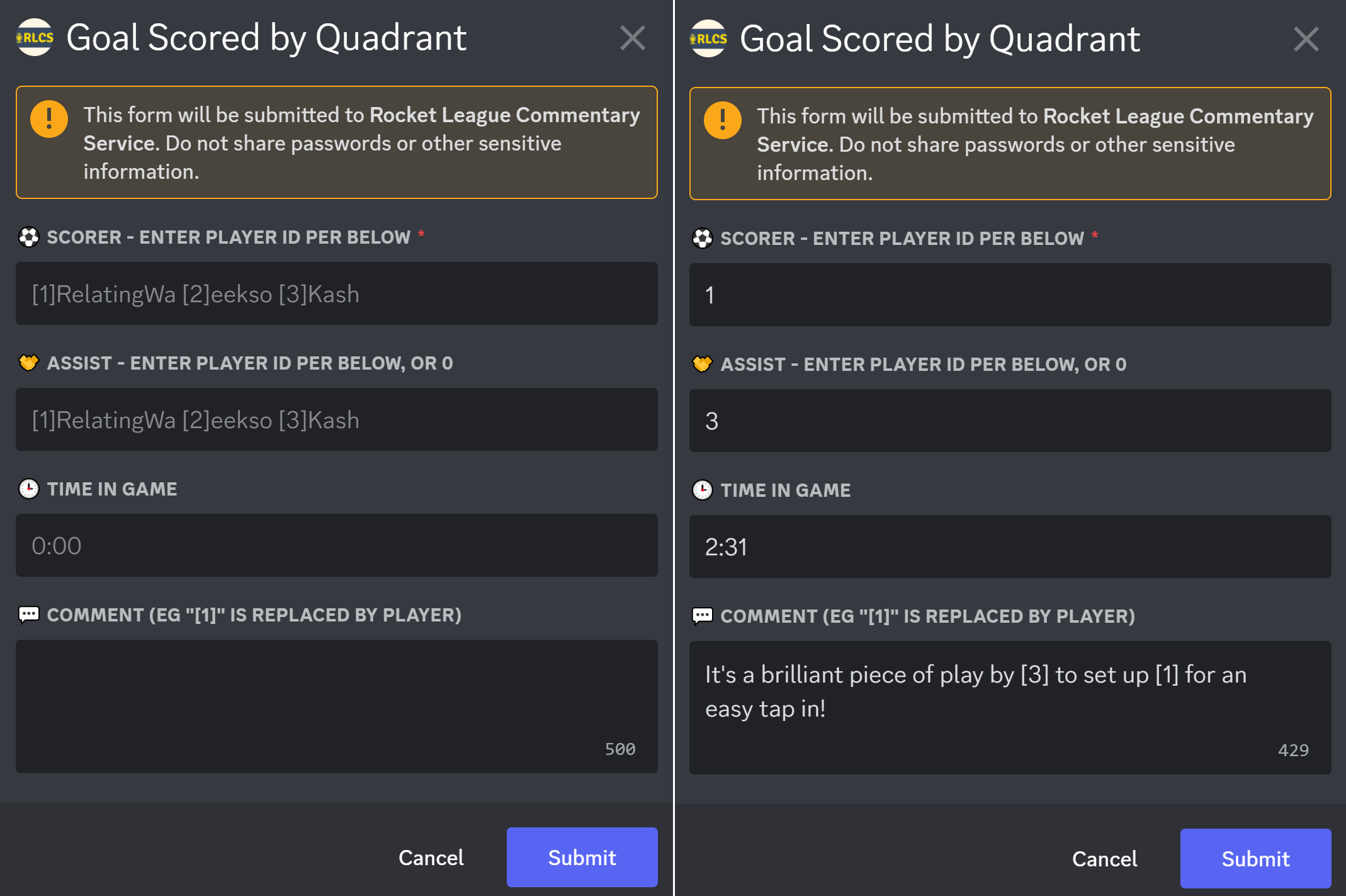
In the Commentary field, any mentions of player ID in square brackets: [1] are replaced by the player’s name!
On submit, the bot publishes a message in the #rlcs-commentary channel which is available to all server members:
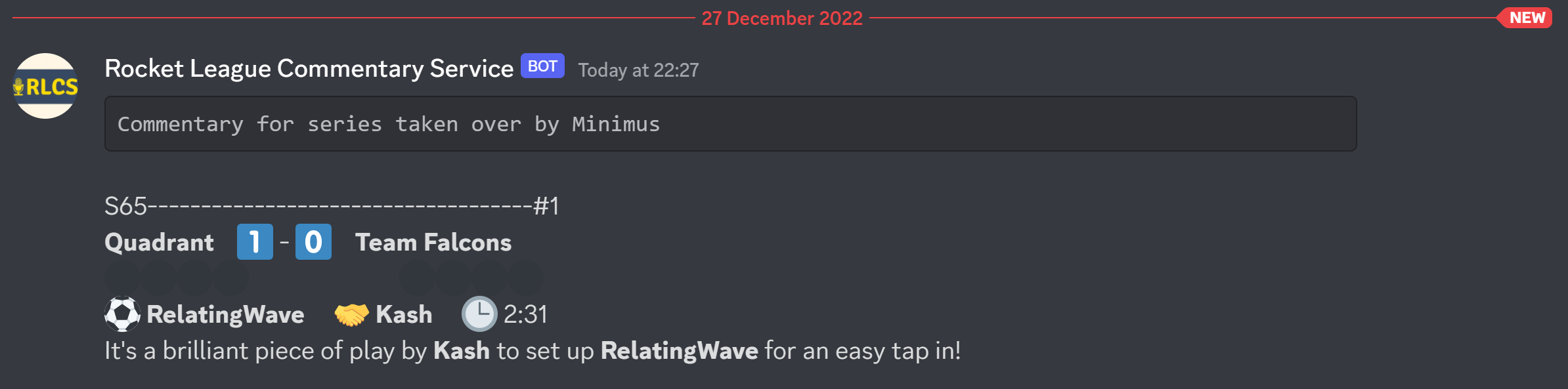
We see the message: Commentary for series taken over by Minimus because this is the first message recorded for the series. If someone else uses the bot to publish a message, we would see Commentary for series taken over by <Someone Else>!
Game
Pressing Game upticks the leading team’s series score by 1, and opens the below menu:
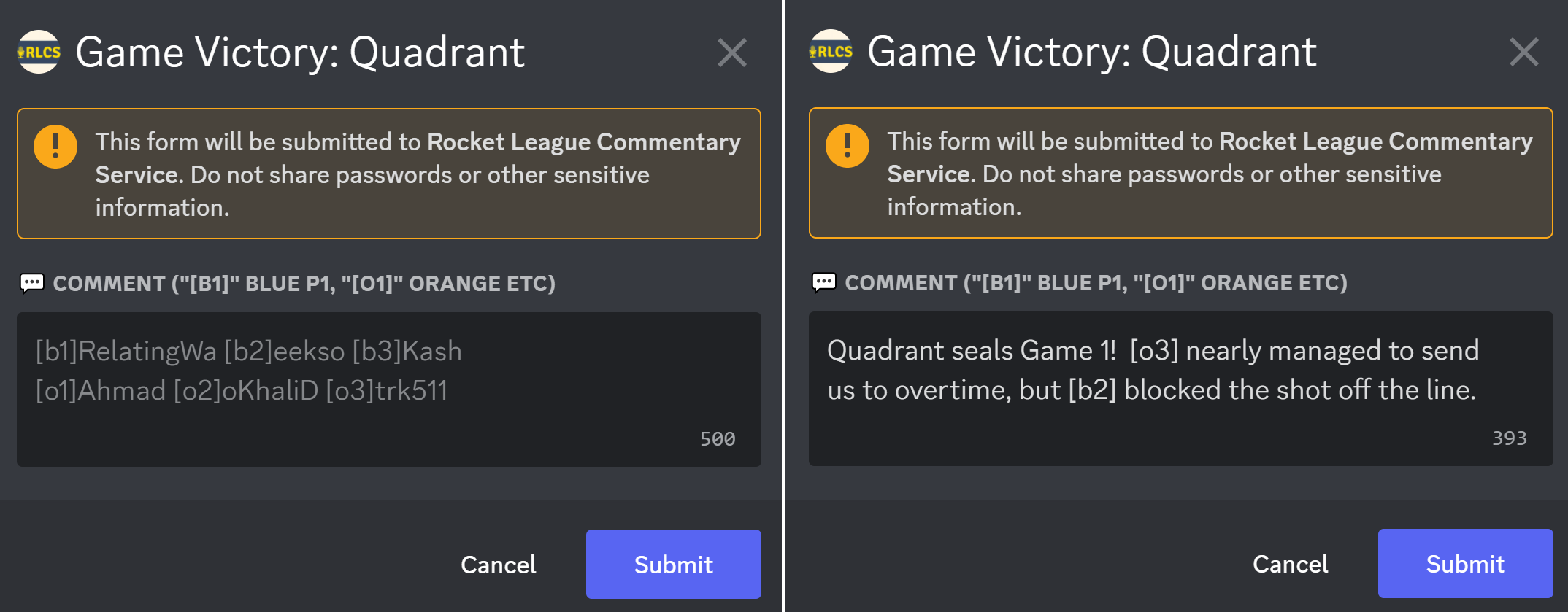
In the Commentary field, we can mention players from both teams - for example calling [b1] or [o1]!
On submit, the bot publishes a message in the #rlcs-commentary channel which is available to all server members:
- The game score is reset to 0-0
- Overtime flag is set back to
false
The Game button can only be pressed if one team is ahead on game score!
Overtime
Pressing the Overtime button automatically stages an update with the following comment:
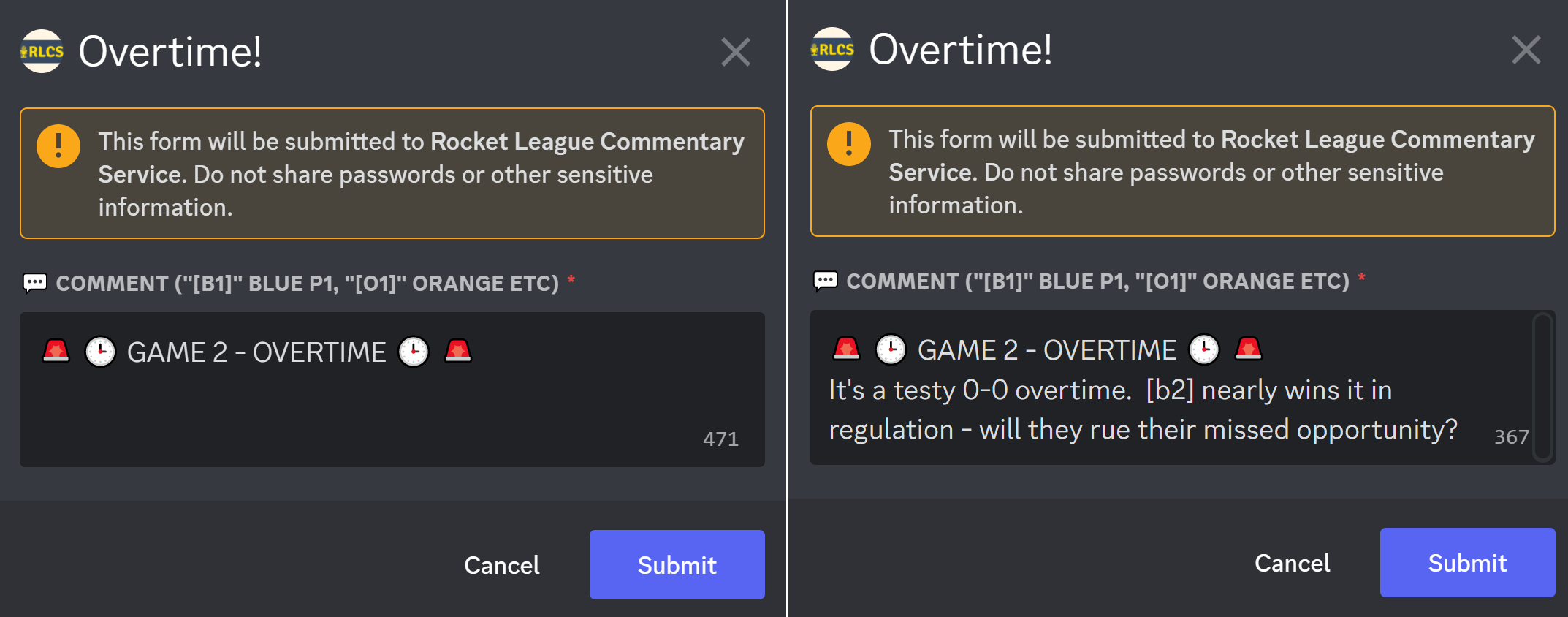
The commentary can be modified as you wish, and supports player name substitution in the form of calling [b1] or [o1]!
On submit, the bot publishes a message in the #rlcs-commentary channel which is available to all server members:

The Overtime button can only be pressed if the game scores are level!
Comment
Pressing the Comment button allows you to publish an update, without changing the score. It’s a good idea to commentate with some variety, beyond describing goals - and mention the things you are seeing on/off the field!
This works similarly to Overtime - but the comment box starts out empty:
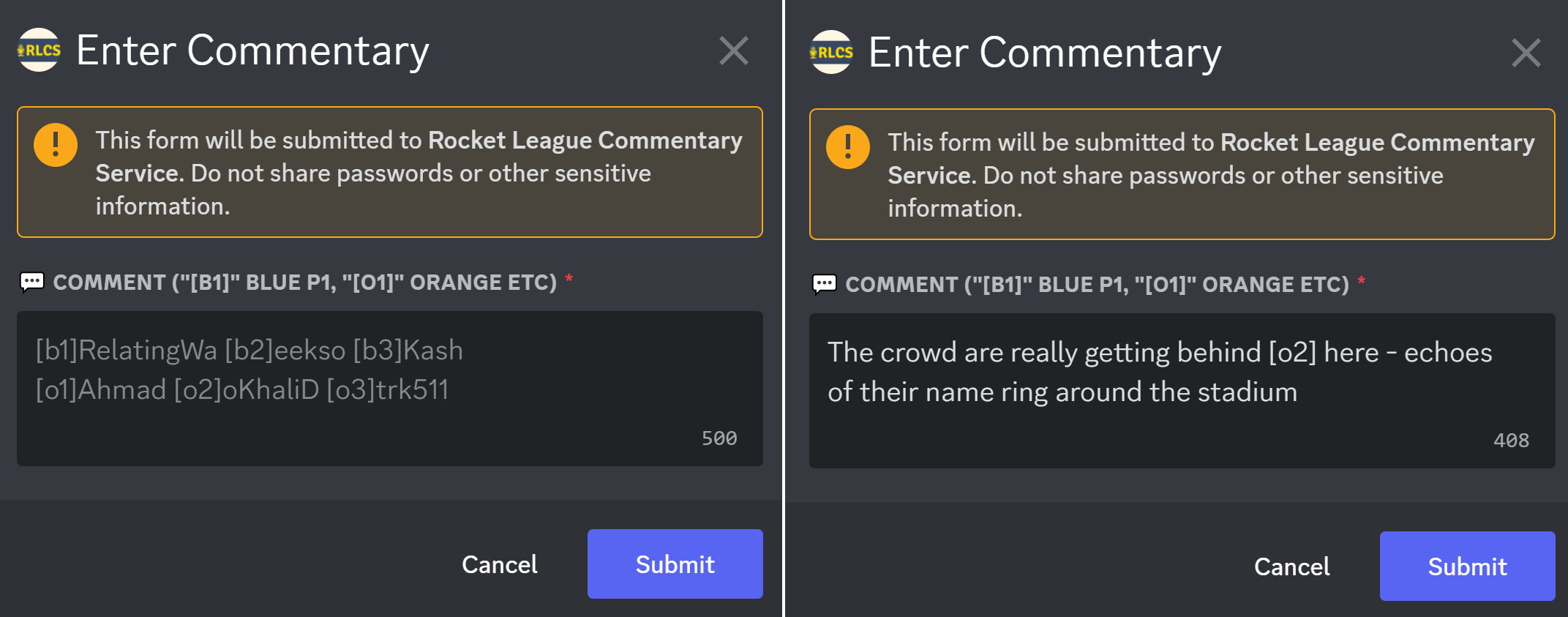
On submit, the bot publishes a message in the #rlcs-commentary channel which is available to all server members:

Twitch Clips
Pressing the Generate Twitch Clip for Next Message immediately generates a Twitch clip of the last 30 seconds of action.
This clip is shared on the next Goal, Game, Overtime or Comment update.
This is explained more thoroughly in Twitch Clips!
Editing the Score
At any point, you can edit the series/game score through the Edit Score button.
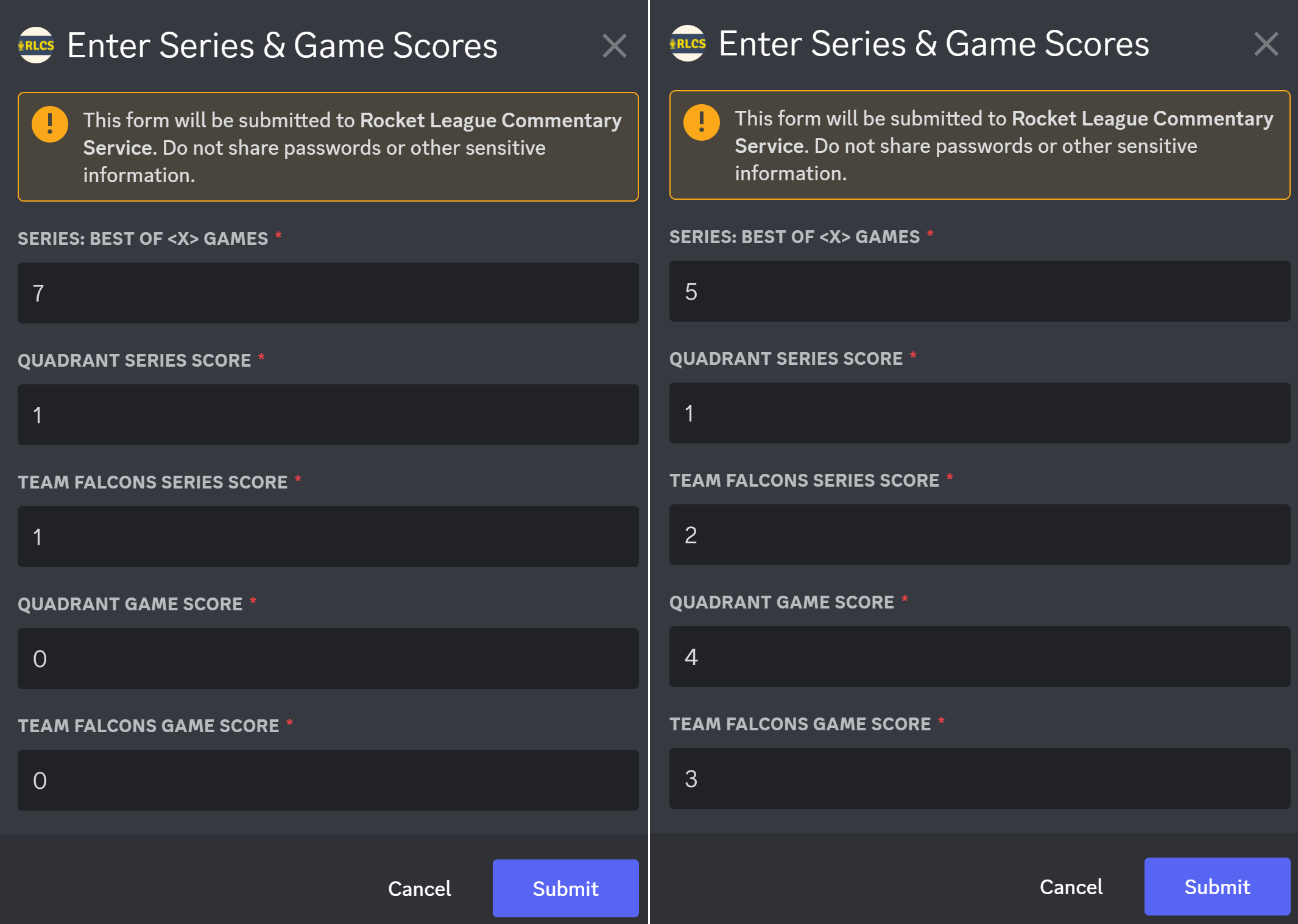
This edits the score of the series in the #rlcs-mission-control channel:
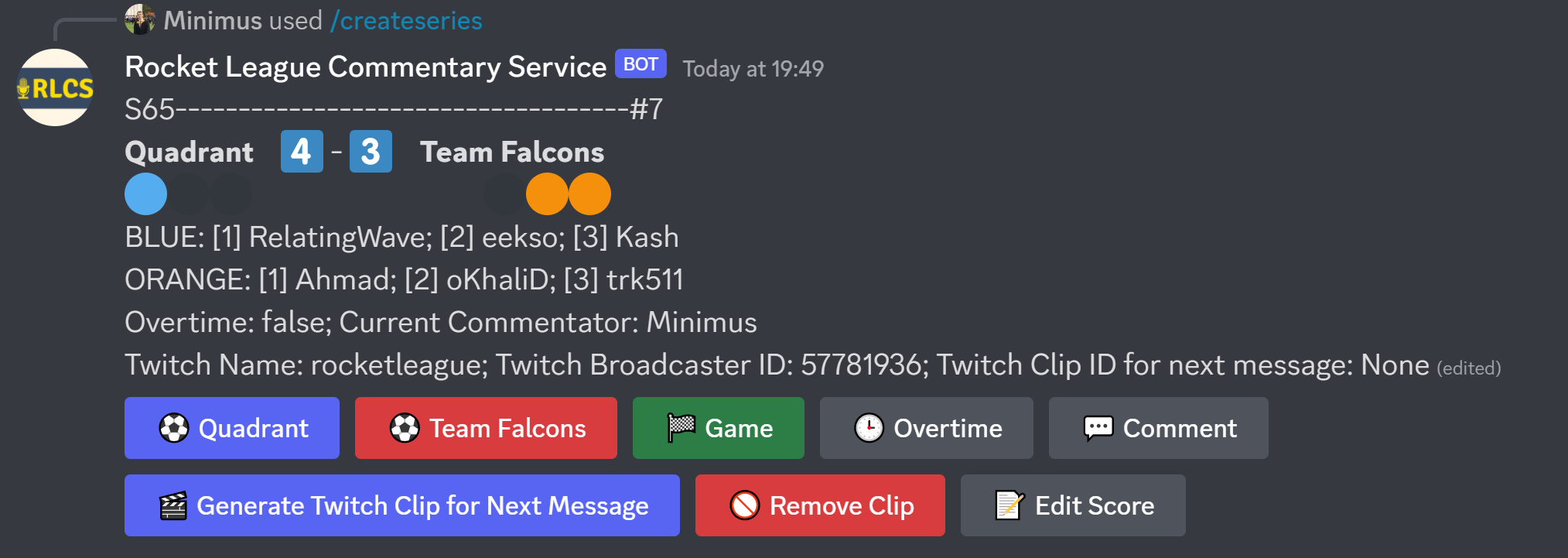
This doesn’t publish a message in the #rlcs-commentary channel, so you’ll need a separate Comment to explain the change!