Twitch Clips
Create and share Twitch clips at the press of a button!
Setup
When Creating a Series, ensure the optional twitchchannel parameter has been specified. Either form is accepted:
- Username: rocketleague
- Full Twitch link: https://www.twitch.tv/rocketleague
Check the Twitch Broadcaster ID has been successfully set when the series has been created. If you see TWITCH_USER_NOT_FOUND, you won’t be able to record any clips!
Creating and Publishing a Clip
When something exciting happens on stream, click the Generate Twitch Clip for Next Message button!
This clip is shared on the next Goal, Game, Overtime, or Comment event (see Entering Commentary).
This will immediately generate a new Twitch clip from the last 30 seconds of action. So take your time when entering your next commentary update!
Clips can be removed from the next update simply by clicking the Remove Clip button.
Worked Example
Saizen1 is live now, so let’s demonstrate this using his stream!
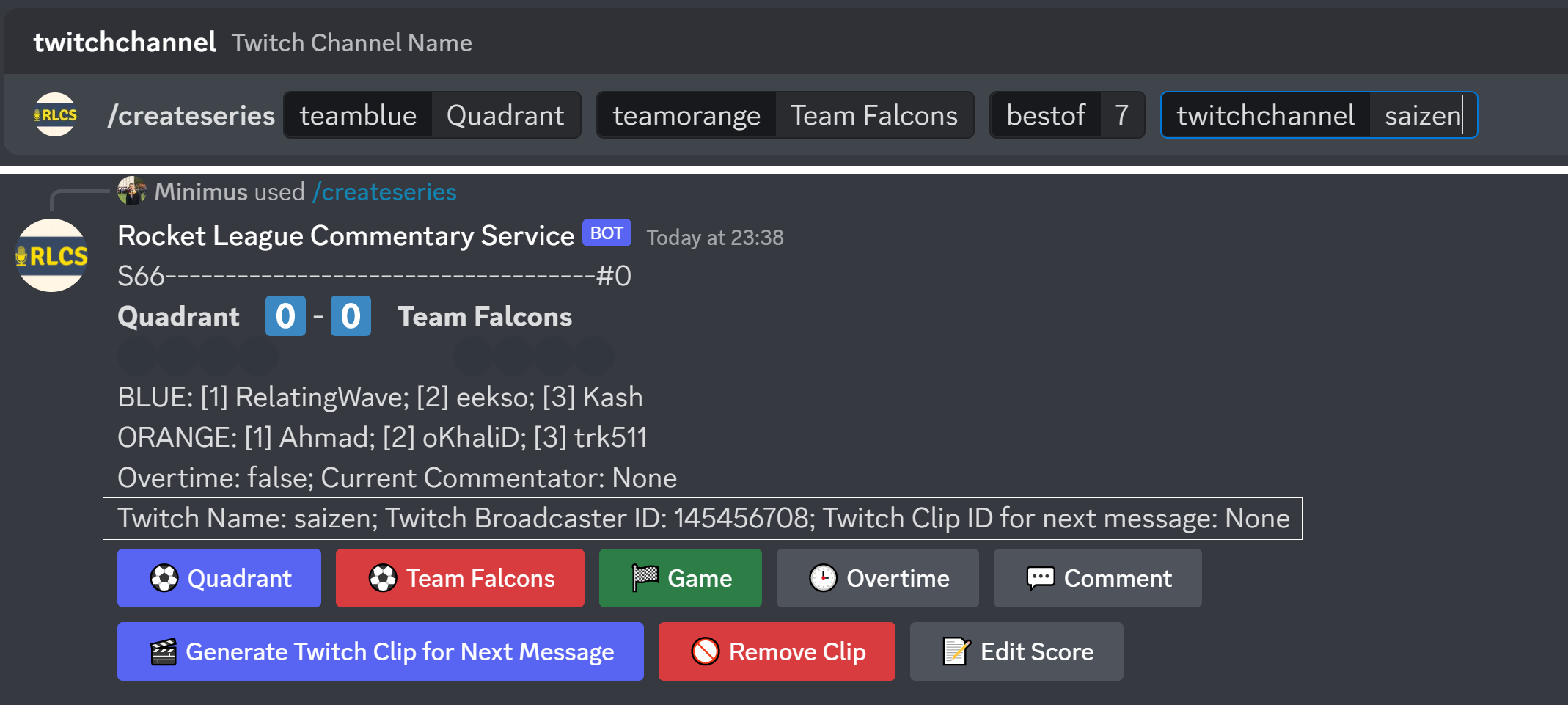
First we’ll create a series using his Twitch handle. The created series has the Twitch Broadcaster ID set - perfect!
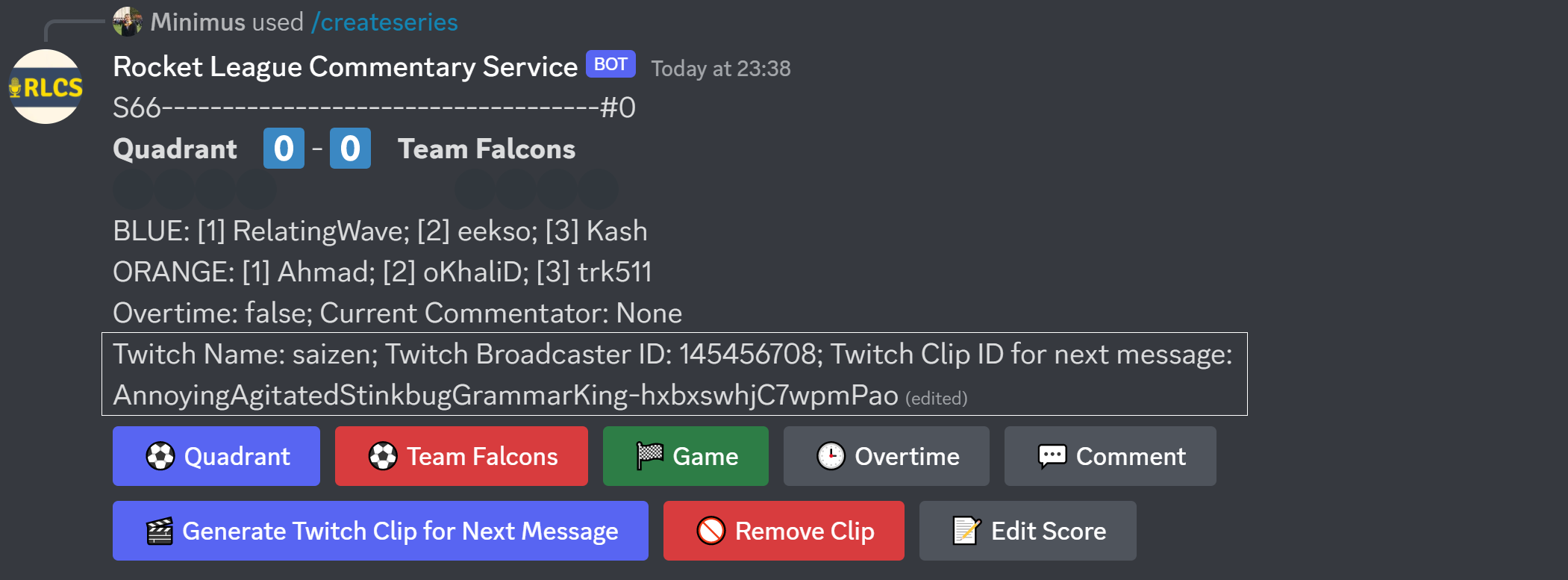
Now we’ll Generate Twitch Clip for Next Message. We can now see a Twitch Clip ID which is staged on the series, and ready for publishing:
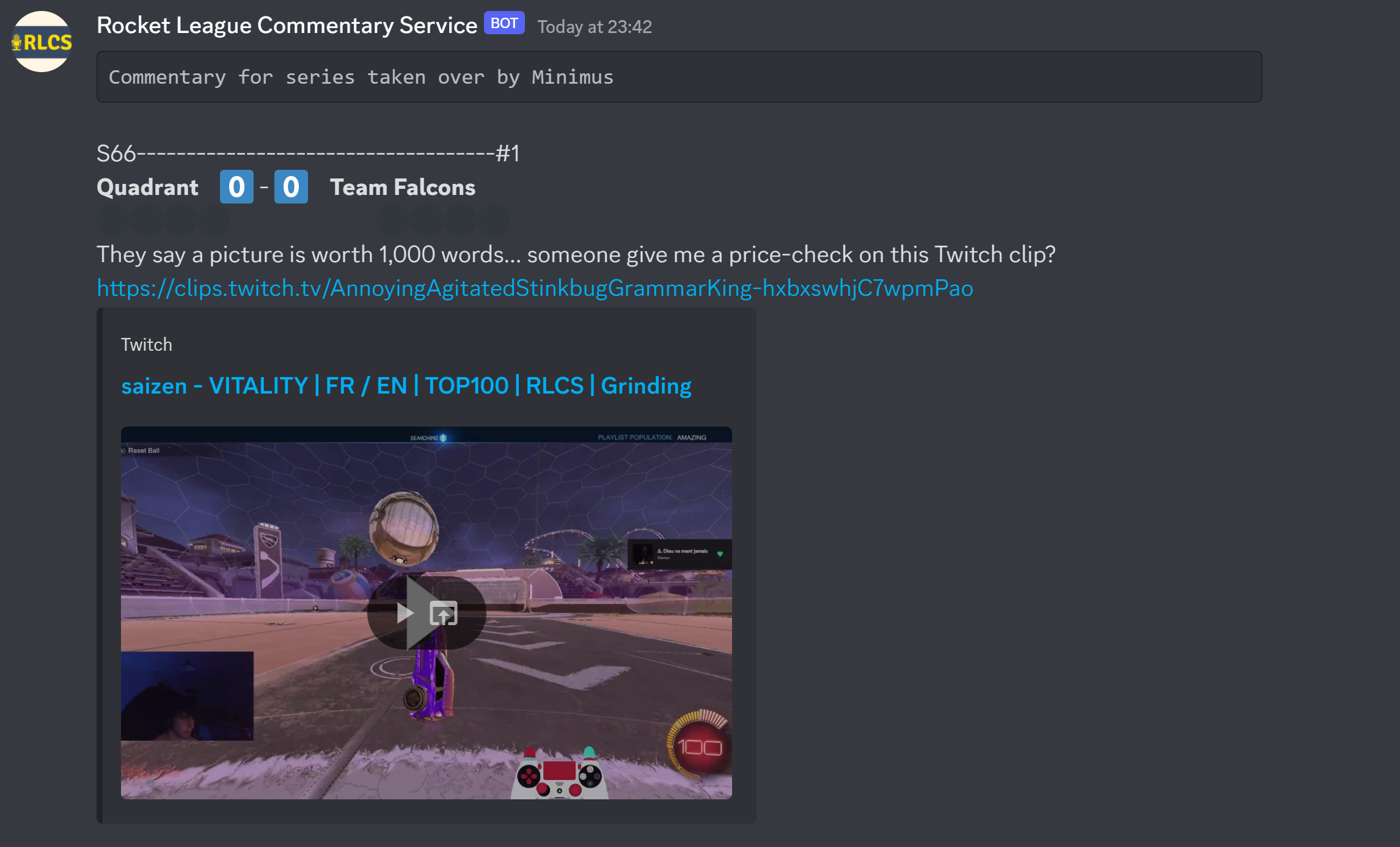
Now let’s enter a Goal update for eg Quadrant. The published message includes the highlight!
Limitations
Unfortunately, not all channels support clipping - and some channels limit this feature to followers/subscribers. This bot doesn’t circumvent those restrictions, so keep them in mind!
-
https://www.twitch.tv/saizen ↩